










在飞牛上部署本地大模型
本文最后更新于 2025-11-17,文章内容可能已经过时。

注意:提前为目标设备提供科学上网环境(基本上配置出现的问题都是网络问题);下面所有操作需要提权 sudo -i
Ollama 安装与配置
方式一:Linux 本地安装
官方文档:https://github.com/ollama/ollama/blob/main/docs/linux.md
使用官方安装脚本
curl -fsSL https://ollama.com/install.sh | sh(可选)允许远程访问 Ollama
打开配置文件
nano /etc/systemd/system/ollama.service[Service]项中添加Environment="OLLAMA_HOST=0.0.0.0:11434"修改完成后重启服务
systemctl daemon-reload
systemctl restart ollama
方式二(推荐):Docker 安装
官方文档:https://github.com/ollama/ollama/blob/main/docs/docker.md
按照官方文档的步骤进行安装即可,如果 Docker 容器不可启动,考虑重新安装 NVIDIA 驱动和 CUDA Driver。
其他问题
官方 Q&A:https://github.com/ollama/ollama/blob/main/docs/faq.md
沉浸式翻译插件调用出现 403 错误
在 docker-compose.yml 文件或 ollama 所在的 linux 环境中添加一个环境变量 OLLAMA_ORIGINS 值为 *
        environment:
            OLLAMA_ORIGINS: "*"
增加模型上下文长度
Ollama 的默认上下文长度为 2048 tokens。这听起来可能不少,但在处理复杂任务时,这个限制会显得有些捉襟见肘。
下列操作将会使模型的上下文长度增加至 8192 tokens
# 生成模型配置文件
ollama show --modelfile qwen3:14b > Modelfile

# 修改配置文件(增加一行代码,注意!增加上下文长度会增加运行时显存占用)
PARAMETER num_ctx 8192

# 修改模型
ollama create qwen3:14b -f Modelfile
Dify 安装与配置
官方安装文档:https://docs.dify.ai/zh-hans/getting-started/install-self-hosted/docker-compose
简单安装
进入 1Panel 应用的目录(便于统一管理 Docker 项目)
cd /vol1/@appdata/1Panel/1panel/apps拉取 Dify 源码,注意版本号
git clone https://github.com/langgenius/dify.git -b 1.4.3进入 Dify 源代码的 Docker 目录
cd dify/docker复制环境配置文件
cp .env.example .env更改外部访问端口
打开
.env文件,更改其中的EXPOSE_NGINX_PORT和EXPOSE_NGINX_SSL_PORT两个参数的端口,否则无法会因为端口被其他程序占用而无法启动。
启动 Docker 容器
docker compose up -d(可选)容器复用
Dify 默认的项目中包含如下容器:3 个业务服务 api / worker / web,以及 6 个基础组件 weaviate / db / redis / nginx / ssrf_proxy / sandbox,其中 db 为 PostgreSQL,nginx 作为反代服务器,以及 redis 作为缓存,这三个服务都可以复用 1Panel 中存在的容器以降低性能消耗。
配置参考:https://www.bilibili.com/video/BV1CTPneYEqj
Dify 的项目组成:
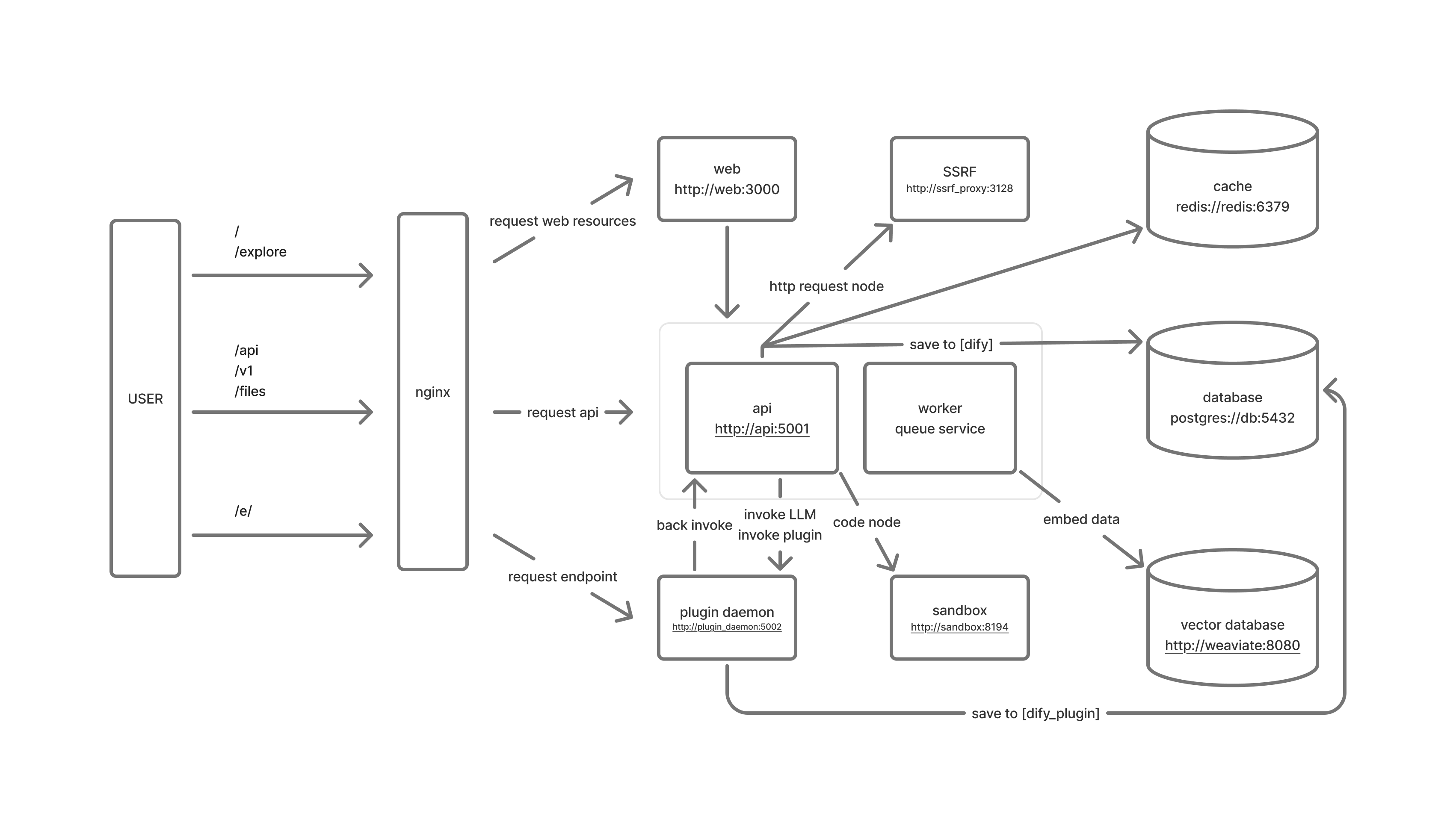
创建一个 PostgreSQL 数据库
在 1Panel 面板的 PostgreSQL 中创建一个数据库,名称为 dify、用户名为 postgres、密码默认随机,在同一界面中记下连接信息(数据库容器名和端口)
修改 .env
## PostgreSQL 数据库的相关信息
DB_USERNAME=postgres
DB_PASSWORD=<数据库密码>
DB_HOST=<容器名>
DB_PORT=5432
DB_DATABASE=dify

## Redis 相关配置
REDIS_HOST=<容器名>
REDIS_PORT=6379
REDIS_USERNAME=<可不填,可通过 redis 数据库容器的终端使用 acl list 命令查询,可填 default>
REDIS_PASSWORD=<数据库密码>
REDIS_USE_SSL=false
REDIS_DB=<数据库序号,默认0,如有其他应用使用,则应设置其他值>

## 更改 Celery 组件配置
CELERY_BROKER_URL=redis://:<数据库密码>@<容器名>:6379/<数据库序号,数值应与上方 REDIS_DB 的不相同>
修改 docker-compose-template.yaml
注释组件
db、redis、nginx去除其他组件的相关依赖
    # depends_on:
    #   db:
    #     condition: service_healthy
    #   redis:
    #     condition: service_started
修改网络配置
## 容器内部网络声明(所有启用的容器都应加上此声明)
    networks:
      - 1panel-network

## 开通外部端口(和其他容器有冲突时注意修改)
# api 组件(这里因为有其他容器占用端口所以另外设置)
    ports:
      - "4001:5001"
# web组件
    ports:
      - "4000:3000"

## 加入 1Panel 网络
networks:
  1panel-network:
    external: true
在 dify 项目下的 docker 目录中,运行 generate_docker_compose 脚本重新生成 docker-compose.yaml
反代设置
启动项目,观察日志输出,并访问反代域名
docker compose up -d
(可选)其他优化
修改 .env 文件(更多环境变量配置需参考官方文档:https://docs.dify.ai/zh-hans/getting-started/install-self-hosted/environments)
## 知识库相关配置优化
# 最大文件大小(单位 M,默认 15)
UPLOAD_FILE_SIZE_LIMIT=100
# 最大单次上传数量(默认 5)
UPLOAD_FILE_BATCH_LIMIT=50

## 多模态相关配置优化
# Upload image file size limit, default 10M.
UPLOAD_IMAGE_FILE_SIZE_LIMIT=10
# Upload video file size limit, default 100M.
UPLOAD_VIDEO_FILE_SIZE_LIMIT=100
# Upload audio file size limit, default 50M.
UPLOAD_AUDIO_FILE_SIZE_LIMIT=50
其他问题
插件安装缓慢及 Ollama 无法添加模型的问题
表现:plugin_daemon 容器日志显示无法安装插件或者初始化超时。
原因:网络故障
解决:
修改 docker-compose-template.yaml 中 plugin_daemon 部分的代码,运行 generate_docker_compose 脚本重新生成 docker-compose.yaml 文件,重启 Dify 项目。
PYTHON_ENV_INIT_TIMEOUT: ${PLUGIN_PYTHON_ENV_INIT_TIMEOUT:-360}
PIP_MIRROR_URL: ${PIP_MIRROR_URL:-https://pypi.tuna.tsinghua.edu.cn/simple}
ComfyUI 安装与配置
ComfyUI 官方文档:https://docs.comfy.org/zh-CN/get_started/introduction
方式一:使用其他项目安装
(推荐)Docker Compose 项目地址:https://github.com/YanWenKun/ComfyUI-Docker
保存以下代码作为 docker-compose.yml 文件内容,保存到工作目录,使用 docker compose up -d 命令即可,访问端口为 8188
services:
  comfyui:
    init: true
    container_name: comfyui
    build:
      context: .
      dockerfile: Dockerfile
    image: "yanwk/comfyui-boot:cu128-slim"
    ports:
      - "8188:8188"
    volumes:
      - "./storage:/root"
      - "./storage-models/models:/root/ComfyUI/models"
      - "./storage-models/hf-hub:/root/.cache/huggingface/hub"
      - "./storage-models/torch-hub:/root/.cache/torch/hub"
      - "./storage-user/input:/root/ComfyUI/input"
      - "./storage-user/output:/root/ComfyUI/output"
      - "./storage-user/workflows:/root/ComfyUI/user/default/workflows"
    environment:
      - CLI_ARGS=
      - HTTP_PROXY=http://username:password@hostname:port    #(可选)代理设置
      - HTTPS_PROXY=http://username:password@hostname:port   #(可选)代理设置
    security_opt:
      - "label=type:nvidia_container_t"
    deploy:
      resources:
        reservations:
          devices:
            - driver: nvidia
              device_ids: ['0']
              capabilities: [gpu]
方式二(推荐):源码部署 ComfyUI
此方法需要一定的动手能力,所有操作都应在非 root 的普通用户下执行。
安装配置 Miniconda 并创建虚拟环境
官方文档:https://www.anaconda.com/docs/getting-started/miniconda/main
安装 Miniconda
# 下载安装脚本
wget https://repo.anaconda.com/miniconda/Miniconda3-latest-Linux-x86_64.sh

# 安装(注意安装时不要取消修改 .bashrc 自启动 conda)
bash Miniconda3-latest-Linux-x86_64.sh

# 运行 Miniconda 环境
bash ~/miniconda3/bin/activate
更换 conda 为清华源
执行
conda config --set show_channel_urls yes后在用户目录下(/home/<user>)生成配置文件 .condarc,更改文件为以下内容
channels:
  - https://mirrors.tuna.tsinghua.edu.cn/anaconda/pkgs/main/
  - https://mirrors.tuna.tsinghua.edu.cn/anaconda/cloud/pytorch/
  - https://mirrors.tuna.tsinghua.edu.cn/anaconda/cloud/conda-forge/
  - https://mirrors.tuna.tsinghua.edu.cn/anaconda/pkgs/free/
  - defaults
show_channel_urls: true
default_channels:
  - https://mirrors.tuna.tsinghua.edu.cn/anaconda/pkgs/main
  - https://mirrors.tuna.tsinghua.edu.cn/anaconda/pkgs/r
  - https://mirrors.tuna.tsinghua.edu.cn/anaconda/pkgs/msys2
custom_channels:
  conda-forge: https://mirrors.tuna.tsinghua.edu.cn/anaconda/cloud
  pytorch: https://mirrors.tuna.tsinghua.edu.cn/anaconda/cloud
  msys2: https://mirrors.tuna.tsinghua.edu.cn/anaconda/cloud
  bioconda: https://mirrors.tuna.tsinghua.edu.cn/anaconda/cloud
  menpo: https://mirrors.tuna.tsinghua.edu.cn/anaconda/cloud
  simpleitk: https://mirrors.tuna.tsinghua.edu.cn/anaconda/cloud
创建并配置虚拟环境
# 创建 conda 虚拟环境
conda create -n comfyui python=3.12

# 进入虚拟环境
conda activate comfyui

# 配置 pip 清华源
pip config set global.index-url https://pypi.tuna.tsinghua.edu.cn/simple
pip config set global.trusted-host pypi.tuna.tsinghua.edu.cn

# (可选)配置网络代理(环境变量),完成后重新激活环境
conda env config vars set http_proxy=http://username:password@hostname:port
conda env config vars set https_proxy=http://username:password@hostname:port

# (可选)配置 git 的网络代理
git config --global http.proxy 'http://username:password@hostname:port'
git config --global https.proxy 'http://username:password@hostname:port'
配置安装环境
注意:配置时应注意当前虚拟环境!
运行环境配置
# 进入虚拟环境
conda activate comfyui

# 使用南京大学源安装 PyTorch
pip install torch torchvision torchaudio --index-url https://mirrors.nju.edu.cn/pytorch/whl/cu130

# 选择合适的目录下载 ComfyUI 源码(加载模型后文件夹体积非常大,应选择其他硬盘空间)
git clone https://github.com/comfyanonymous/ComfyUI.git

# 安装必要依赖
cd ComfyUI
pip install -r requirements.txt

# 安装 ComfyUI-Manager 插件
cd custom_nodes/
git clone https://github.com/ltdrdata/ComfyUI-Manager

# 安装插件所需的依赖
cd ComfyUI-Manager
pip install -r requirements.txt
运行 ComfyUI
cd ComfyUI
python3 main.py --listen 0.0.0.0
首次启动可能需要较长时间,观察终端输出 Device: cuda:0 如显示独立显卡,则可使用独显加速。
开机自启动
创建一个新的 systemd 服务文件
sudo nano /etc/systemd/system/comfyui.service配置服务内容
[Unit]
Description=ComfyUI
After=network.target

[Service]
Type=simple
# 替换为你的实际用户名
User=1000
Group=1001
# 替换为你的项目目录路径
WorkingDirectory=/vol1/@appdata/AI/ComfyUI
# 设置环境变量
Environment="CONDA_PREFIX=/home/<用户名>/miniconda3/envs/comfyui"
Environment="CONDA_DEFAULT_ENV=comfyui"
Environment="PATH=/home/<用户名>/miniconda3/envs/comfyui/bin:/usr/local/sbin:/usr/local/bin:/usr/sbin:/usr/bin:/sbin:/bin"
# 启动命令 - 使用虚拟环境中的python解释器
ExecStart=/home/<用户名>/miniconda3/envs/comfyui/bin/python main.py

Restart=always
RestartSec=10
# 日志配置
StandardOutput=journal
StandardError=journal

[Install]
WantedBy=multi-user.target
设置权限和启动服务
# 重新加载systemd配置
sudo systemctl daemon-reload

# 设置文件权限
sudo chmod 644 /etc/systemd/system/comfyui.service

# 启用开机自启动
sudo systemctl enable comfyui.service

# 立即启动服务
sudo systemctl start comfyui.service

# 检查服务状态
sudo systemctl status comfyui.service
查看运行日志:
sudo journalctl -u comfyui.service -f
其他问题
ComfyUI-SAM2 节点启动时报错: No module named 'sam2.build_sam'
原因:缺少依赖的
sam2模块解决:
# 安装SAM2核心库
pip install git+https://github.com/facebookresearch/segment-anything-2.git
LayerStyle 节点启动时警告: Cannot import name 'guidedFilter' from 'cv2.ximgproc'
Issue:https://github.com/chflame163/ComfyUI_LayerStyle/issues/5
原因:
opencv-contrib-python包版本不正确,或者该包被其他opencv包覆盖导致的。解决:卸载其他
opencv包,重新安装opencv-contrib-python
# 卸载其他 opencv 包
python -s -m pip uninstall -y opencv-python opencv-python-headless opencv-contrib-python-headless opencv-contrib-python

# 重新安装
python -s -m pip install opencv-contrib-python
KSampler 节点运行时报错:brushNet_out_sample_wrapper() got an unexpected keyword argument 'latent_shapes'
Issue:https://github.com/nullquant/ComfyUI-BrushNet/issues/202
解决:修改
custom_nodes/ComfyUI-BrushNet/model_patch.py文件后重启程序
# 原代码
def brushNet_out_sample_wrapper(wrapper_executor, noise, latent_image, sampler, sigmas, denoise_mask=None, callback=None, disable_pbar=False, seed=None):

# 修改后的代码
def brushNet_out_sample_wrapper(wrapper_executor, noise, latent_image, sampler, sigmas, denoise_mask=None, callback=None, disable_pbar=False, seed=None, latent_shapes=None):
AstrBot 安装与配置
官方文档:https://docs.astrbot.app/what-is-astrbot.html
GitHub:https://github.com/AstrBotDevs/AstrBot
可使用 docker 或 1panel 直接安装,此处提供本地源码安装的步骤
创建并进入虚拟环境(Miniconda 的安装与配置见 ComfyUI 部署方式二)
# 创建并进入虚拟环境
conda create -n astrbot python=3.12
conda activate astrbot

# 配置 pip 清华源
pip config set global.index-url https://pypi.tuna.tsinghua.edu.cn/simple
pip config set global.trusted-host pypi.tuna.tsinghua.edu.cn

# (可选)配置网络代理(环境变量),完成后重新激活环境
conda env config vars set http_proxy=http://username:password@hostname:port
conda env config vars set https_proxy=http://username:password@hostname:port
下载 AstrBot 源码
git clone https://github.com/AstrBotDevs/AstrBot.git安装依赖
cd AstrBot/
pip install -r requirements.txt
运行程序
python main.py本地部署语音转文字服务(STT)
安装 pytorch
# 进入虚拟环境
conda activate astrbot

# 选择 pytorch 版本(CPU 或 NVIDIA)
# 纯 CPU
pip install torch torchaudio --index-url https://mirrors.nju.edu.cn/pytorch/whl/cpu

# CUDA 13.0
pip install torch torchaudio --index-url https://mirrors.nju.edu.cn/pytorch/whl/cu130
Whisper
# 进入虚拟环境
conda activate astrbot

# 设置模型存储位置并重新激活环境(测试后无效)
conda env config vars set WHISPER_CACHE_DIR="/path/to/your/whisper/cache"
conda deactivate
conda activate astrbot

# 若以上模型位置存储更改方式无效,可创建软链接
# 移动原有缓存
mv ~/.cache/whisper /new/path/whisper
# 创建符号链接
ln -s /new/path/whisper ~/.cache/whisper

# 选择合适的模型手动下载到 /new/path/whisper
    "tiny.en": "https://openaipublic.azureedge.net/main/whisper/models/d3dd57d32accea0b295c96e26691aa14d8822fac7d9d27d5dc00b4ca2826dd03/tiny.en.pt",
    "tiny": "https://openaipublic.azureedge.net/main/whisper/models/65147644a518d12f04e32d6f3b26facc3f8dd46e5390956a9424a650c0ce22b9/tiny.pt",
    "base.en": "https://openaipublic.azureedge.net/main/whisper/models/25a8566e1d0c1e2231d1c762132cd20e0f96a85d16145c3a00adf5d1ac670ead/base.en.pt",
    "base": "https://openaipublic.azureedge.net/main/whisper/models/ed3a0b6b1c0edf879ad9b11b1af5a0e6ab5db9205f891f668f8b0e6c6326e34e/base.pt",
    "small.en": "https://openaipublic.azureedge.net/main/whisper/models/f953ad0fd29cacd07d5a9eda5624af0f6bcf2258be67c92b79389873d91e0872/small.en.pt",
    "small": "https://openaipublic.azureedge.net/main/whisper/models/9ecf779972d90ba49c06d968637d720dd632c55bbf19d441fb42bf17a411e794/small.pt",
    "medium.en": "https://openaipublic.azureedge.net/main/whisper/models/d7440d1dc186f76616474e0ff0b3b6b879abc9d1a4926b7adfa41db2d497ab4f/medium.en.pt",
    "medium": "https://openaipublic.azureedge.net/main/whisper/models/345ae4da62f9b3d59415adc60127b97c714f32e89e936602e85993674d08dcb1/medium.pt",
    "large-v1": "https://openaipublic.azureedge.net/main/whisper/models/e4b87e7e0bf463eb8e6956e646f1e277e901512310def2c24bf0e11bd3c28e9a/large-v1.pt",
    "large-v2": "https://openaipublic.azureedge.net/main/whisper/models/81f7c96c852ee8fc832187b0132e569d6c3065a3252ed18e56effd0b6a73e524/large-v2.pt",
    "large-v3": "https://openaipublic.azureedge.net/main/whisper/models/e5b1a55b89c1367dacf97e3e19bfd829a01529dbfdeefa8caeb59b3f1b81dadb/large-v3.pt",
    "large": "https://openaipublic.azureedge.net/main/whisper/models/e5b1a55b89c1367dacf97e3e19bfd829a01529dbfdeefa8caeb59b3f1b81dadb/large-v3.pt",
    "large-v3-turbo": "https://openaipublic.azureedge.net/main/whisper/models/aff26ae408abcba5fbf8813c21e62b0941638c5f6eebfb145be0c9839262a19a/large-v3-turbo.pt",
    "turbo": "https://openaipublic.azureedge.net/main/whisper/models/aff26ae408abcba5fbf8813c21e62b0941638c5f6eebfb145be0c9839262a19a/large-v3-turbo.pt",

# 安装 whisper 与 ffmpeg
pip install openai-whisper ffmpeg
SenseVoice
# 进入虚拟环境
conda activate astrbot

# 安装相关组件
pip install funasr funasr_onnx modelscope jieba ffmpeg

# 额外修复
pip install --update ml_dtypes
本地部署文字转语音服务(edge-tts)
# 进入虚拟环境
conda activate astrbot

# 安装相关组件
pip install edge-tts
开机自启动
参考上文 ComfyUI 的安装方式二中的自启动配置